To help publicize the library and our services, we decided to create podcasts and dynamic presentations.
Creating Podcasts
Our first attempt was an audio podcast, with a voiceover reading a script using rotating images to provide a visual, saved in mpg4 format. Had trouble finding license-free music on a PC (Mac has Garageband, which has usage music installed). We used Sourceforge, but found that audio podcasts are okay, but people prefer video.
Next, we decided to go with video podcast.
We went with a video production company, but it ended up costing $5,000 and took 7 months. Plus, it didn't end up being a nice, short, informative podcasts - the production company ended up making it long, dry, and boring.
So NIST bought their own camera, microphone, and Macbook. They also built a camera dolly out of a bookcart so the picture was steady. NIST librarians took a free class at an Apple Store to find out how to do it, and then did it.
Tips for creating video podcasts
it's easiest to do audio voiceovers later, so focus on filming video
instersperse still images to make it interesting
limit videos to about 1 minute
save in two formats: .mov streaming, .mp4 for downloading
Creating Dynamic Presentations
PPTplex - plugin for powerpoint 2007/10 to allow "zooming presentations" - allows you to easily create moving and dynamic presentations, and repeat words and images without making it look like you're repeating yourself. Another tool for zooming presentations is Prezi.com
Ways to use digital presentations
Use this to make static presentations dynamic
Conference posters online - make them static and text-heavy, and people with interest will read them
Digital display - LCD display uses graphics and colors and attracts more attention, so much better than an LED board
Use video in new employee orientation - videos can show more than pictures or words can convey
Optimal length to display a slide is 7 seconds - that is how long it takes for someone to walk by the NIST display. Time yours so it flips during someone's walk-by, so they see that it changes.
NIST staff researched available displays, and chose one that would support PowerPoint, so staff didn't have to learn new proprietary software
Ideas for the future
Integrating looping video (showing a screencast on how to do something, because people understand how to follow a mouse, and don't require sound)
Marketing the same information using all your marketing channel - not every patron is exposed to every channel This allows you to repurpose your content.
You should also repeat marketing messages, because people forget
Another fun way to make video presentations is using Xtra Normal - all you do is type a script, and it creates the video for you - it's attention-grabbing because it's fun, and makes the information more noticeable (it's easy and fun)
Laura Solomon, Ohio Public Library Information Network (OPLIN) Alexandra Zealand, Social Media Coordinator & News Blog Editor; Stacia Aho, Library Webmaster; Jonathan Newton, Library Web Programmer, Arlington Public Library
Don't waste your homepage - Laura Solomon
The library homepage is the most important part of your website - here are some tips for the best use of the space
Spell it out - patrons don't know library acronyms and jargon. Spell it out, at least the first time you use it
Don't be wordy, or use large blocks of text
Mission statements are important to libraries and trustees, but not to patrons, so don't put it on your homepage (nor lists of staff or board names)
Weed your graphics - graphic loads take time and slow things down and clutter up pages - they need to be meaningful and have a point. And anything you do use, optimize for web
Don't use clipart - it undermines your professionalism (even using stock photography is better)
Be careful about using widgets and gadgets - people don't come to the library website to check the weather or news feeds
Don't use exclamation points!!! They are not professional!!1!
Your homepage above the fold is your prime real estate - don't cover it with a welcome mat (if they weren't welcome, it would be password protected)
Don't put a picture of your library on the homepage - your building is not your product
Put your library's phone number and address on your homepage
Label all the links to pdf as [pdf] - don't surprise people with huge downloads
Community Engagement on a Shoestring - Arlington VA Public Library
Case study of how they went from municipal website to library-specific website with integrated content to focus on patron needs and use:
First, convince county IT department to let library have a branded header with its own logo
Use links on homepage to direct people to library's blog, which looks like real website but is easier to update and control - this keeps the homepage and makes it useful
Important static information stays on the static site, in case blogger blog went away
Content on blog is basically news and events - things that would have been press releases
Tools used were all free
Blogger - easy to use (got for less tech-savvy staff), supports tags, and supports...
Yahoo Pipes to create news feeds based on tags - use tags to filter information for each branch, so branches can have their own identity and patrons fell more connected with hyper-local information - feeds sometimes get picked up by local news outlets, which drives a ton of traffic, and some people become regular readers
Two areas of websites we don't have easy control over
Catalog
Databases
Websites must be three things:
Useful
Our Content Strategy (planning the creation, deliver and conveyance of UUD content) must address this question: What do people want to do on our site?
Identify your critical tasks
Spend a few minutes each day just asking people what they want to do, and whether or not you're meeting their needs
Perform a content audit - not just pages, but the images and information on each page (cataloger, being detailed oriented, are good at this). Is each page: accurate, usefulness, used, web-written, on message, last updated. Rate each piece on a scale of 0-2 to identify areas to keep, remove or improve.
Usable
Smaller is better
Websites should not be junk drawers - "just in case" is not the right approach
Design your website around your FAQs - if it's on an FAQ, it doesn't get on the site
Write for the Web - we keep hearing that people generally don't read on the web (though this might be changing with tablets and larger mobile devices). What people do is Function Reading - skim to find what's important to them
Write with a conversation and friendly tone, not like a policy document
Put the most important stuff at the top of the page
Use bolded headlines, bullets, and white space - it is easier to scan - be sure to use white space correctly to group related headlines/content
Use simple urls: http://library.org/kids vs. http://library.org/kids/pages/content.php?p=423
One idea per sentence (fragments okay), not too big, bot too small, never all-caps, use active voice, correct contrast
Refer to library as "we" and patrons as "you" or "I" - good example "How do I reset my PIN?"
Never use "click here" - make the link text meaningful ("Search Catalog" instead of "Click here to search the catalog")
Do usability testing - You can find this out by simply watching people use the website - walk out, ask a patron if they have a minute, give them a task ("use our website to find a receipe" or "can you find out our branch's Tuesday closing time on Tuesday") and then watch them
Use Google Optimizer to test multiple versions of pages with the same content, to see what content is important and which design works best
It's also important to have a mobile version of your website. Visit Influx.us/onepage - a library website template that puts this idea into practice - works on mobile devices
Desirable
Choose a good color palette - use a professional, use a free website color matcher, etc
Don't use clipart
Use common conventions, grid layout, pre-made themes from the community
Make content interesting - example: transmissions between NASA control and space flights presented in back-and-forth Twitter-like conversation
Make it convenient - definitely a mobile-friendly version
Marketing: put your stuff out there, and keep at it
Four Stages of Library Website Development
One builds on the other, and you can't move up until you finish the lower levels (like Maslov's Hierarchy)
Basic
Necessary information, relevant functionality, no major usability issues
Destination (a "destination website")
Librarian-created content, basic interactivity
Participatory
Serious user generated content, patrons creating culture - library acts as the aggregator, and patrons have reason to do this here, instead of somewhere else
example: Hennapin County bookspace
Community Portal
Library website as community platform, the website becomes a community knowledge bank (tool like this is Kete)
Take-away goal
Reduce your site by half - it doesn't mean you have bad content, but people cant find it because there is too much to look through -
Someone asked me this question on Thursday this week - St. Patrick's Day:
You know how there's no snakes in Ireland because Saint Patrick drove them all out, right? Well, do they let zoos in Ireland have snakes?
I honestly couldn't tell if the patron was being funny, clever, or serious - so I looked it up.
A simple web search for zoo ireland snakes produced quite a few good links, indicated that there are indeed (captive) snakes in Ireland.
An article from the Smithsonian not only goes into the St. Patrick myth, but also the natural history of Ireland and snakes, and says that there are snakes on the island in zoos and as pets.
That seem to conclusively answer the question, and the patron apparently enjoyed the search. He chastised me for not wearing green, and then just sort of wandered away.
However, now that Yahoo support of Delicious is uncertain*, I thought I'd create a Plan B - using a similar service, Diigo. I set up a Diigo account for the library, and tested how well their linkrolls worked, compared to what I was used to with Delicious. Below are the steps to do this, and the results.
Import your bookmarks to Diigo
Browse to the file you saved, and click Import. After doing this, you'll probably get a "processing" message, and you'll receive an email once the upload is complete and your bookmarks are ready
Create a Diigo Linkroll Tools > More Tools... (bottom of the toolbar on the left) > Enhanced Linkrolls
I like to uncheck "Icon" and leave "Title" blank
Enter the tags you'd like to pull for this linkroll - or more than one tag, if you're using a structured vocabulary like I am. Click the "Retrieve" button to preview on the right
Be sure "Show Descriptions" is checked, so your Notes/annotations will be displayed
"Count" is how many to display. I prefer more than what they seem to allow, so later in the code I always edit this to count=100 (or more, if you need it)
"Style" options seem to be: Standard = no bullets, Simple = bullets, Customized lets you make some changes to colors and fonts
Lastly, click the "Create Script" button, and you'll see the code in a little box at the bottom. Now you can simply copy/paste that code into your website where you'd like the linkroll to appear.
By default, every linkroll has kind of an annoying (I think) RSS image at the end of the list. To get rid of this, you can include this code (thanks to Ryan):
Side-by-side comparison
Just for the fun of it, here's what the same "consumer health resources" linkroll looks like (with a little formatting) from both Delicious and Diigo. Below those is the linkroll code itself. Also, check out the live examples of these linkrolls embedded in the library's website:
Comparison results
Personally, I like the look of the Delicious linkroll better. My problem with Diigo linkrolls is that they don't seem as flexible as Delicious - for instance, there is no sort option (alphabetical, chronological, etc). Diigo also doesn't seem to offer the failsafe <noscript> tag, for browsers that don't have javascript enabled. Plus, you can't see their CSS styles, so you can't customize as much. I don't like that I can't seem to change the size of the description text, and that it forces a blank line between the description and the title for each bookmark. Because of that, I think you can get an all-around cleaner and tighter look with Delicious.
But, that said, the Diigo linkroll isn't totally unworkable either - just less flexible for control freaks like me. Of course, there are morebookmarkingalternativestoo.
Oh yeah, the bookmarklet
One reason Delicious is so great for library subject guides is its bookmarklet and toolbar buttons - they let you and your coworkers bookmark websites on the fly, from any computer (where they are installed). Diigo has a toolbar and bookmarklet too - and like with Delicious, I prefer the bookmarklet. For me, this is a must for any bookmarking service.
As a result of this test, I'm not rushing to switch over to Diigo. It'll work if Delicious disappears tomorrow, but I'm still going to test out a few of the other options, to see if I can find one I like a little better. But in the meantime, I feel good that I do have a very workable Plan B in place, just in case.
Update 3/27/11:
I just noticed something interesting - and troubling - about Diigo: they apparently have a "decency" filter that will automatically mark private bookmarks with "questionable" tags - for instance, porn- and illicit substance-related tags. This is a problem for me, not least because the PDRHealth website listed above keeps getting switched to "Private," and hence doesn't display in my Diigo linkroll, because it is tagged "drugs" and "drug." Others found that breast cancer websites tagged with "breast" - and similar scenarios - also automatically get removed from linkrolls. I haven't found a list of taboo tags, so it's just trial and error at this point (my testing shows that "drugs" is okay, but "drug" is not). This is another example why filtering, both here in Diigo and porn filters for computers in general, do not and will not work.
Also, it seems Diigo takes about 5-10 minutes for changes to show up in my embedded linkrolls, which is a fairly decent response time (although I think Delicious was a little quicker, more like 0-5 minutes).
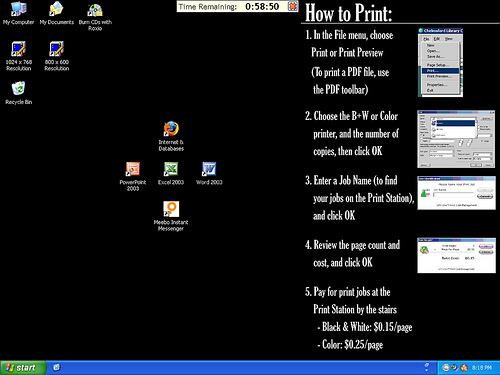
For the last few years at my library, our public computers all looked the same - Windows XP with a custom wallpaper displaying instructions on how to print. Our setup looked like this:
A month or so ago, we upgraded to Windows 7, and thought we'd also change the wallpaper.
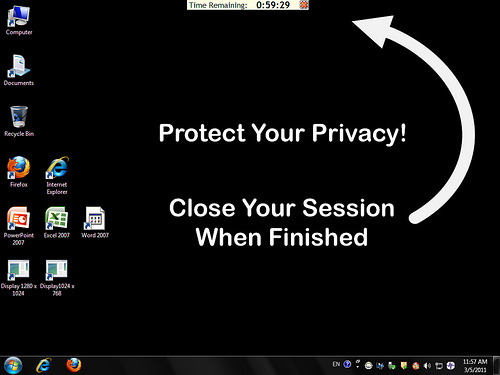
Our goal in this was to improve patron privacy. The timer software we use is Time Limit Manager (TLM), by Fortress Grand (the little "Time Remaining" clock at the top of the screen above). I like this software because it is very customer service oriented, and patrons don't need to log in with a barcode to start their session - they can just sit down, click "I Agree" to our policies, and go. The timer is basically a courtesy reminder, and for the most part we can get away with using the honor system (TLM does offer additional features for when push comes to shove).
But the main problem we were seeing wasn't that people wouldn't leave the computer - it was that patrons weren't ending their session when they left the computer. This set up the scenario where a second patron could come along and just continuing using the session of the previous patron.
This never caused a real problem in my library, but the potential was there, so we thought the upgrade would be a good time to address it.
With the Windows 7 rollout, we designed new wallpaper, hoping to prompt people end their session when they were finished with the computer. The new wallpaper looks like this:
The result? Absolutely no change whatsoever.
I didn't do a scientific survey, but just from the number of times staff has to end the session at an abandoned computer, the privacy reminder didn't seem to affect anyone at all.
I can't believe people aren't seeing this message, so it's tough not to conclude that, at least in my library, most patrons don't care much about their privacy.
So, I wanted to ask the question here - what do other libraries do to get patrons to end their session?
 Stacy Bruss & Nancy Allmang, Reference Librarians, NIST
 Amanda Etches-Johnson, Head, Discovery & User Access,